
How to hide retweets on X
You follow people for what they post, but your timeline fills up with what they repost. Here is how to see only original posts.
Updated November 2026
Why hide reposts
A few accounts that repost a lot can take over a whole timeline. Hiding reposts leaves only what the people you follow wrote or shared themselves, which makes a timeline or a list much shorter and easier to follow.
What X lets you do
In X’s app you can turn off reposts for one account from that account’s profile: open the menu on their profile and choose Turn off Reposts. You keep following them, but their reposts stop showing up.
There are two limits. The change applies only to new reposts, not ones already in your timeline, and there is no way to turn off reposts from all accounts at once, so you have to repeat it for every account.
Hide every retweet at once in TweeTok
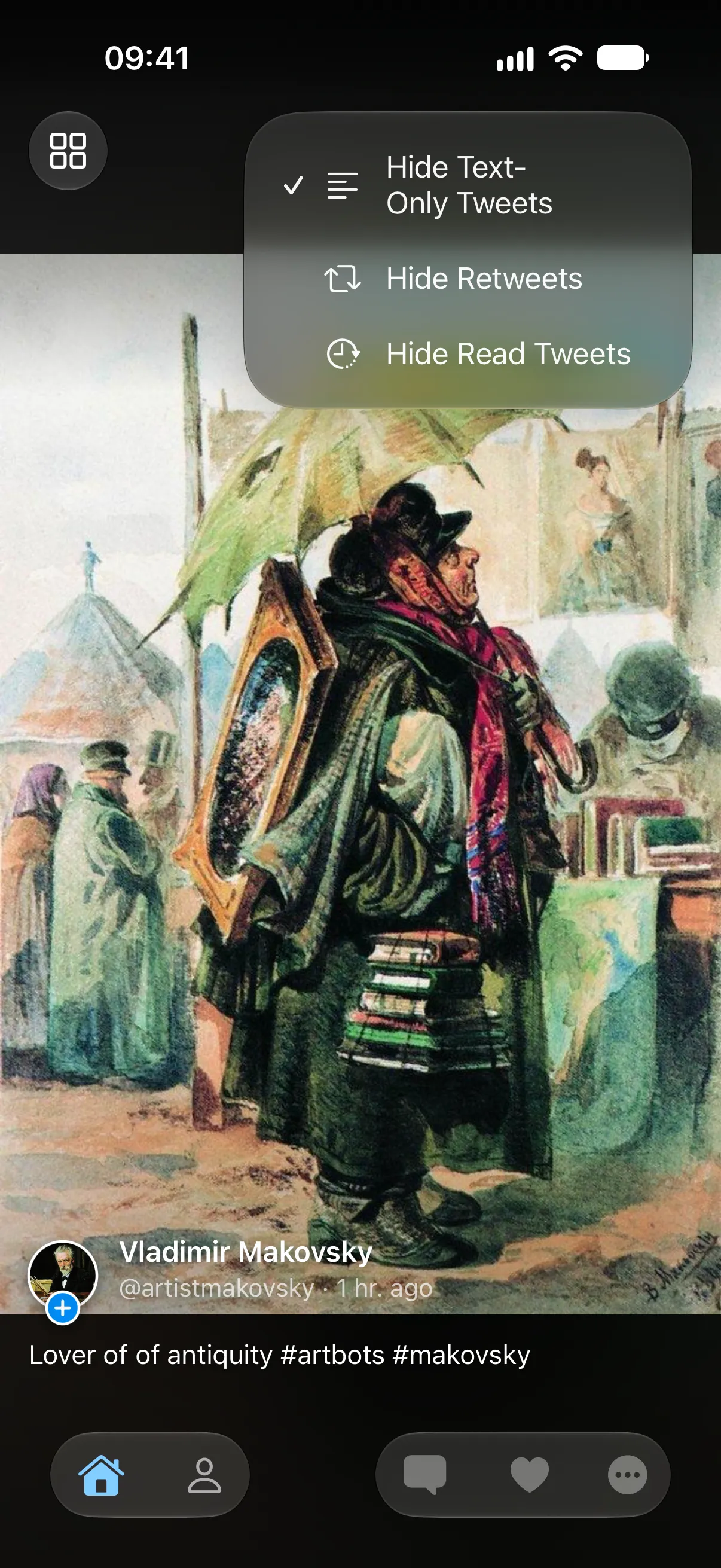
TweeTok has a single switch that hides all retweets in a timeline or list, including the ones already there. It is free.
- Open the timeline or list you want to clean up.
- Tap the filter button next to the timeline name at the top.
- Turn on Hide Retweets. Reposts disappear right away, old and new.
- To see them again, turn the switch off.
On profiles, Apple TV and Android
The same filter is in the menu on anyone’s profile, so you can look at one account’s own posts without their reposts. It works the same way on Apple TV and in the Android app. If you also turn on Hide Text-Only Tweets, the timeline is left with original photos and videos only.
Does this change my X account?
No. The filter only changes what TweeTok shows you. Nothing is changed on X: you keep following everyone, and nobody is notified.